A backup restore GPO PowerShell routine uses the Backup-GPO, Restore-GPO and Import-GPO cmdlets to save every Group Policy Object to disk, roll a damaged GPO back to an earlier version and copy settings into another domain. GPO backups are small and fast, but they do not contain everything: links to OUs and the WMI filters themselves live outside the GPO. This guide shows the full routine, including a scheduled script that also saves links, filters and reports, the restore steps for changed and deleted GPOs, cross-domain imports with migration tables, and LGPO.exe for local policy.
Applies to Windows Server 2016 to 2025; RSAT on Windows 11
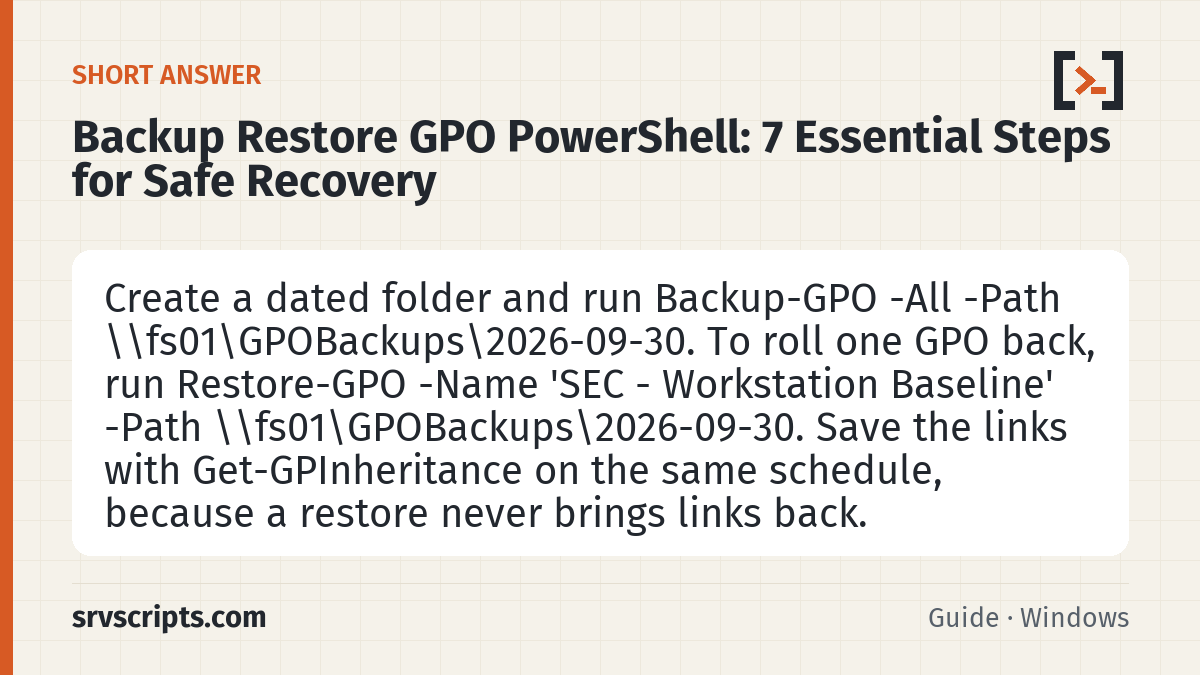
Short answer: Create a dated folder and run Backup-GPO -All -Path \\fs01\GPOBackups\2026-09-30. To roll one GPO back, run Restore-GPO -Name 'SEC - Workstation Baseline' -Path \\fs01\GPOBackups\2026-09-30. Save the links with Get-GPInheritance on the same schedule, because a restore never brings links back.
Table of Contents
Which method to use
| Tool | Use it for | Keeps GUID | Brings back links | Notes |
|---|---|---|---|---|
| GPMC Back Up / Manage Backups | Ad-hoc backups, restoring deleted GPOs | Yes | No | GUI; easiest for a deleted GPO |
Backup-GPO / Restore-GPO | Scheduled backups, rollbacks in the same domain | Yes | No | Restore-GPO needs the GPO to exist |
Import-GPO | Copy settings into an existing or new GPO, any domain or forest | No | No | Settings only; supports migration tables |
Copy-GPO | Duplicate a live GPO, optionally with its permissions | No | No | Needs a trust for cross-domain copies |
| LGPO.exe | Local policy on standalone or non-domain machines | n/a | n/a | From the Microsoft Security Compliance Toolkit |
| DC system state backup | Forest or domain recovery | Yes | Yes | Heavy; not for single-GPO rollbacks |
What a GPO backup contains
| Included | Not included |
|---|---|
| GPO GUID and domain | Links to sites, the domain and OUs |
| All settings (Administrative Templates, security, preferences, scripts in SYSVOL) | The WMI filter object itself |
| Permissions (DACL), so security filtering and delegation | IP Security policies |
| The link to a WMI filter | Block Inheritance and Enforced flags (they belong to OUs and links) |
| An XML settings report, time stamp and comment |
On restore, the WMI filter link comes back only if the filter still exists in the domain; otherwise it is dropped. A complete backup restore GPO PowerShell process therefore saves links and filters separately, as the script below does.
Prerequisites
- GPMC and the
GroupPolicymodule (RSAT on Windows 11, or a Windows Server 2016 to 2025 management server), plus theActiveDirectorymodule. - Read access to all GPOs for backups. Restoring an existing GPO needs Edit settings, delete, modify security on it; restoring a deleted one needs the right to create GPOs.
- A backup folder that already exists (Backup-GPO does not create it), ideally a share on a server that is itself backed up, with write access for the backup account only.
- For scheduled backups, a service account or group Managed Service Account (gMSA) with those rights.
Back up with GPMC
- In GPMC, right-click Group Policy Objects and choose Back Up All…, or right-click one GPO and choose Back Up….
- Enter the folder and a description, then click Back Up.
- Check the result with right-click Group Policy Objects » Manage Backups…, which lists every backup in a folder with its time stamp.
Each backup is stored in a subfolder named after its backup ID (a GUID). Do not rename or edit these folders by hand; GPMC and the cmdlets find backups through that structure.
Back up with Backup-GPO
Backup-GPO -Name 'SEC - Workstation Baseline' -Path \\fs01\GPOBackups\Adhoc -Comment 'Before USB change'
Backup-GPO -All -Path \\fs01\GPOBackups\Adhoc -Comment 'Before domain upgrade'
These two lines are the smallest possible backup restore GPO PowerShell safety net. Several backups of the same GPO can share one folder; each gets its own backup ID and Restore-GPO uses the newest unless you name a specific -BackupId. Dated folders are still easier to manage and delete. If you omit -Server, the cmdlets use the PDC emulator.
Scheduled backup script
This script is the core of our backup restore GPO PowerShell routine. It creates a dated folder, backs up every GPO, and saves the pieces a GPO backup leaves out: an index of backup IDs, all links with their order and flags, the WMI filters and HTML and XML reports. Save it as C:\Scripts\Backup-AllGPOs.ps1.
Import-Module GroupPolicy, ActiveDirectory
$root     = '\\fs01\GPOBackups'
$keepDays = 90
$stamp    = Get-Date -Format 'yyyy-MM-dd_HHmm'
$path     = Join-Path $root $stamp
New-Item -ItemType Directory -Path $path -Force | Out-Null
# 1. Back up every GPO and keep an index of backup IDs
Backup-GPO -All -Path $path -Comment "Scheduled $stamp" |
    Select-Object DisplayName, GpoId, Id, CreationTime |
    Export-Csv "$path\BackupIndex.csv" -NoTypeInformation
# 2. Save links on the domain and every OU
$domain  = (Get-ADDomain).DistinguishedName
$targets = @($domain) + (Get-ADOrganizationalUnit -Filter *).DistinguishedName
$targets | ForEach-Object { (Get-GPInheritance -Target $_).GpoLinks } |
    Select-Object DisplayName, GpoId, Target, Enabled, Enforced, Order |
    Export-Csv "$path\GPOLinks.csv" -NoTypeInformation
$targets | ForEach-Object { Get-GPInheritance -Target $_ } |
    Where-Object GpoInheritanceBlocked -eq 'Yes' | Select-Object Path |
    Export-Csv "$path\BlockedOUs.csv" -NoTypeInformation
# 3. Save WMI filters
Get-ADObject -SearchBase "CN=SOM,CN=WMIPolicy,CN=System,$domain" -Filter 'objectClass -eq "msWMI-Som"' -Properties * |
    Export-Clixml "$path\WmiFilters.xml"
# 4. Human-readable and machine-readable reports
Get-GPOReport -All -ReportType Html -Path "$path\AllGPOs.html"
Get-GPOReport -All -ReportType Xml  -Path "$path\AllGPOs.xml"
# 5. Retention
Get-ChildItem $root -Directory |
    Where-Object { $_.CreationTime -lt (Get-Date).AddDays(-$keepDays) } |
    Remove-Item -Recurse -Force
Site links are not covered by Get-GPInheritance. If you link GPOs to sites, note them in the same folder by hand or export them from the site objects’ gPLink attribute.
Run it every night
$action    = New-ScheduledTaskAction -Execute 'powershell.exe' -Argument '-NoProfile -ExecutionPolicy Bypass -File C:\Scripts\Backup-AllGPOs.ps1'
$trigger   = New-ScheduledTaskTrigger -Daily -At 1:30am
$principal = New-ScheduledTaskPrincipal -UserId 'CONTOSO\gmsa-gpobkp$' -LogonType Password
Register-ScheduledTask -TaskName 'Backup all GPOs' -Action $action -Trigger $trigger -Principal $principal
With a gMSA, -LogonType Password tells Task Scheduler to fetch the managed password from AD. Grant the gMSA write access to the share and Log on as a batch job on the server.
Restore a changed GPO with Restore-GPO
The restore half of a backup restore GPO PowerShell routine starts here. Restore-GPO puts the settings and permissions from a backup back into the existing GPO, keeping its GUID and links. It works in the domain the backup came from.
# Newest backup of one GPO in a folder
Restore-GPO -Name 'SEC - Workstation Baseline' -Path \\fs01\GPOBackups\2026-09-29_0130
# A specific older backup: look up its ID in the index
Import-Csv \\fs01\GPOBackups\2026-09-01_0130\BackupIndex.csv | Where-Object DisplayName -like 'SEC*'
Restore-GPO -BackupId 0fc29b3c-fb83-4076-babb-6194c1b4fc26 -Path \\fs01\GPOBackups\2026-09-01_0130
# Every GPO in the folder (use with care)
Restore-GPO -All -Path \\fs01\GPOBackups\2026-09-29_0130 -WhatIf
Run -WhatIf first for -All. A restore raises the GPO version, so clients reapply it at the next refresh; run Invoke-GPUpdate if you cannot wait. For the two default GPOs, dcgpofix is a last-resort alternative when no backup exists.
Restore a deleted GPO and its links
Microsoft documents that Restore-GPO fails when the GPO no longer exists, so use GPMC for a deleted GPO:
- Right-click Group Policy Objects and choose Manage Backups….
- Browse to the backup folder, select the GPO and click Restore, then OK.
GPMC recreates the GPO with its original GUID. The links are gone, because they were attributes of the OUs, so recreate them from the CSV saved by the backup script:
$csv = '\\fs01\GPOBackups\2026-09-29_0130\GPOLinks.csv'
foreach ($l in Import-Csv $csv | Where-Object DisplayName -eq 'SEC - Workstation Baseline') {
    $en  = if ($l.Enabled  -eq 'True') { 'Yes' } else { 'No' }
    $enf = if ($l.Enforced -eq 'True') { 'Yes' } else { 'No' }
    New-GPLink -Guid $l.GpoId -Target $l.Target -LinkEnabled $en -Enforced $enf
    "Linked to $($l.Target), original order $($l.Order)"
}
Check the link order on each OU afterwards and correct it with Set-GPLink -Order. If the GPO used a WMI filter that was also deleted, recreate the filter from WmiFilters.xml or a GPMC .mof export first, then relink it on the Scope tab.
Roll back after a bad change: a worked example
A colleague edits SEC – Workstation Baseline at 14:00 and by 15:00 the helpdesk reports that users cannot map printers. The recovery with the nightly backups looks like this:
- Take a backup of the current, broken state first, so you can compare it later:
Backup-GPO -Name 'SEC - Workstation Baseline' -Path \\fs01\GPOBackups\Adhoc -Comment 'Broken state'. - Compare the reports: open
AllGPOs.htmlfrom last night and a freshGet-GPOReportof the GPO side by side, or diff the twogpreport.xmlfiles. - Restore last night’s version with
Restore-GPO -Name 'SEC - Workstation Baseline' -Path \\fs01\GPOBackups\2026-09-29_0130. - Push the change to the affected OU with GPMC Group Policy Update or
Invoke-GPUpdate. - Re-apply the intended part of the edit, this time on a test OU first.
Because the GPO keeps its GUID and links, nothing else in the domain changes.
Import settings into another domain
A backup restore GPO PowerShell process also covers migrations. Import-GPO copies the settings from a backup into a target GPO. It does not touch the target’s links or security filtering, and it works across domains and forests without a trust, because it only reads the backup folder.
Import-GPO -BackupGpoName 'SEC - Workstation Baseline' -Path D:\GPOBackups\2026-09-29_0130 -TargetName 'SEC - Workstation Baseline' -CreateIfNeededUse a migration table
GPOs often reference domain-specific objects: groups in Restricted Groups and User Rights, UNC paths in Folder Redirection and software installation, and script paths. A migration table maps them to the target domain during the import.
- In GPMC on the target side, right-click Group Policy Objects and choose Open Migration Table Editor.
- Choose Tools » Populate from Backup… and select the backup. The editor lists every security principal and UNC path it finds.
- For each row, set Destination Name to the target object, for example
FABRIKAM\Helpdeskor\\fab-fs01\Profiles. <Same As Source> keeps the reference unchanged and <Map by Relative Name> uses the same name in the target domain. - Save the table as
D:\Tables\contoso-to-fabrikam.migtable. - Import with the table:
Import-GPO -BackupGpoName 'SEC - Workstation Baseline' -Path D:\GPOBackups\2026-09-29_0130 -TargetName 'SEC - Workstation Baseline' -MigrationTable D:\Tables\contoso-to-fabrikam.migtable -CreateIfNeeded
The GroupPolicy module has no cmdlet to create migration tables, so build them in the editor once and reuse the file. For copies between trusted domains, Copy-GPO -SourceName ... -SourceDomain ... -TargetName ... -TargetDomain ... -MigrationTable ... does the same from a live GPO, and -CopyAcl also copies permissions.
Document GPOs with Get-GPOReport
Reports are the fastest way to see what changed between two backups:
Get-GPOReport -Name 'SEC - Workstation Baseline' -ReportType Html -Path C:\Reports\Baseline.html
[xml]$r = Get-GPOReport -Name 'SEC - Workstation Baseline' -ReportType Xml
$r.GPO.Computer.VersionDirectory
Each backup folder also contains gpreport.xml for that GPO. Comparing two of them with a diff tool shows exactly which settings changed.
Local policy with LGPO.exe
Standalone servers and workgroup PCs have only local policy. LGPO.exe, part of the Microsoft Security Compliance Toolkit, exports and imports it in the same backup format:
LGPO.exe /b C:\LGPO-Backup /n "SRV-DMZ01 local policy"
LGPO.exe /g C:\LGPO-Backup
/b creates a GPO-style backup of the local policy; /g imports one or more GPO backups found under a folder. That also means a domain GPO backup can be applied as local policy on a machine outside the domain. Run both from an elevated prompt.
Retention and storage
- Keep nightly backups for 30 to 90 days, plus monthly copies for a year. GPO backups are usually small, so storage is rarely the limit.
- Store the share on a server that is itself backed up off-site, not only on a DC.
- Restrict write access to the backup account; backups contain script paths and settings an attacker would like to change.
- Take an ad-hoc backup before every larger GPO change, with a comment that says why.
Verify backups and restores
An untested backup restore GPO PowerShell job is only a hope. Check it regularly:
- After each run, check that
BackupIndex.csvhas one row per GPO: compare with(Get-GPO -All).Count. - Open Manage Backups in GPMC and confirm the new folder lists every GPO.
- Test a restore quarterly: back up a test GPO, change a setting, restore it and confirm the setting in
Get-GPOReport. - After a real restore, run
gpresult /hon a client to confirm the restored values are applied.
Troubleshooting
| Error or symptom | Likely cause | Fix |
|---|---|---|
| Backup-GPO: path not found | Folder does not exist | Create it first (New-Item -ItemType Directory) |
| Some GPOs missing from the backup | Backup account cannot read them | Check Get-GPPermission -All on those GPOs |
| Restore-GPO fails for a GPO | GPO was deleted or backup is from another domain | Use GPMC Manage Backups, or Import-GPO for another domain |
| Restored GPO does not apply | Links not recreated | Relink from GPOLinks.csv |
| WMI filter missing after restore | Filter deleted; backups keep only the link | Recreate the filter, then relink it |
| Imported GPO references old domain groups | No migration table | Re-import with a .migtable |
| Name matches more than one GPO | Duplicate display names | Use -Guid or -BackupId |
With the scheduled script in place, a backup restore GPO PowerShell recovery takes minutes: restore the settings, relink from the CSV, and push the change with a remote gpupdate.
Backup restore GPO PowerShell at a glance
Official documentation: Back up, restore, migrate and copy Group Policy Objects, Backup-GPO (GroupPolicy module), Import-GPO (GroupPolicy module).
Related guides: Reset the Default Domain Policy and Default Domain Controllers Policy with dcgpofix · Back up and restore a domain controller (system state, authoritative restore) · GPO WMI filters with ready-made queries.
Frequently asked questions
Does Backup-GPO save GPO links?
No. Links belong to the site, domain or OU, not to the GPO, so they are not in the backup. Export them with Get-GPInheritance on the same schedule and recreate them with New-GPLink after restoring a deleted GPO.
What is the difference between Restore-GPO and Import-GPO?
Restore-GPO returns an existing GPO in the original domain to a backed-up state, including its permissions and GUID. Import-GPO copies only the settings into a target GPO, which can be in another domain or forest.
How do I restore a deleted GPO?
In GPMC, right-click Group Policy Objects, choose Manage Backups, select the GPO and click Restore. It is recreated with its original GUID, but you must add its links again.
Is there a PowerShell cmdlet to create a migration table?
No. Create the .migtable file in the GPMC Migration Table Editor and pass it to Import-GPO or Copy-GPO with the -MigrationTable parameter.
Are WMI filters included in GPO backups?
Only the link to the filter. Export the filters from GPMC or with Get-ADObject, because a restored GPO drops its WMI filter link if the filter no longer exists.
Maintenance record
This guide changes servers, data or security settings, so we re-check it against current versions on a fixed schedule. Take a backup or snapshot before you start.
- Maintained by
- srvScripts editorial team
- Supported versions
- Windows Server 2016 to 2025; RSAT on Windows 11
- Last full review
- Next review