The AI log analyzer reads a block of server log lines and tells you what went wrong, which lines prove it and what to run next. It understands the formats admins deal with every day: Apache and LiteSpeed access and error logs, Nginx, Exim and Postfix mail logs, Dovecot, journald, MariaDB, PHP-FPM, ModSecurity and Windows event exports.
AI answers can be wrong. Read every command before you run it, and test on a non-production server first. Your input is sent to our AI provider (srvScripts AI) to write the answer. srvScripts does not log your input; the answer, which can quote it, is cached for 24 hours so a repeat question is answered instantly. See the privacy policy.
Table of Contents
It is built for the moment a site throws 503s or mail stops flowing and you are staring at hundreds of lines. Instead of a generic explanation you get the evidence, the most likely cause and a short list of fixes for your platform.
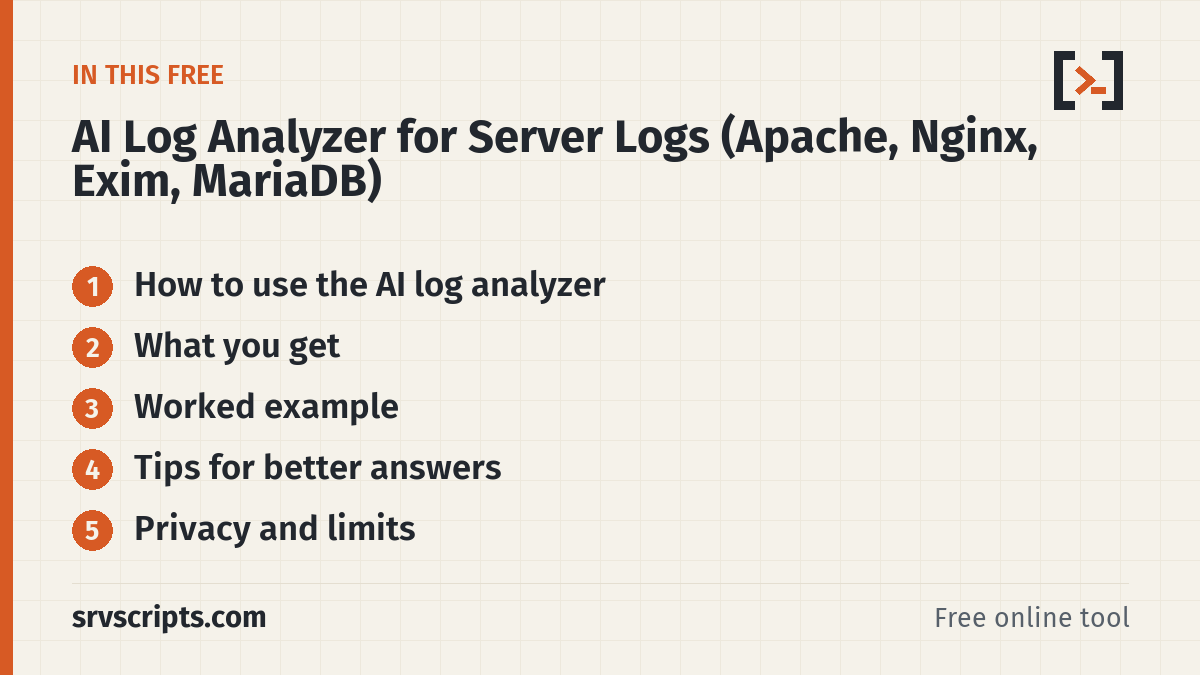
How to use the AI log analyzer
- Pick the log type, or leave it on automatic detection.
- Paste 20 to 400 lines around the time of the problem — the lines just before the first error matter most.
- Optionally say what you want to know, such as “why did the site return 503 at 14:05?”.
- Choose the answer type. Diagnose only (the default) gives read-only checks and changes nothing on your server; Diagnose, then suggest fixes adds fix steps, each with a test and a rollback.
- Press Analyze log and read the summary, evidence and checks. Copy any command with one click.
What you get
- A two or three sentence summary of what the log shows.
- Bullet points that quote the exact lines used as evidence, so you can check the reasoning.
- Likely causes, ranked and labelled either as shown by the log or as a hypothesis, with read-only checks that confirm or rule out each one.
- Numbered fix steps for cPanel, DirectAdmin, plain Linux or Windows, each with a test and a rollback, only when you ask for fixes.
- What to collect next when the excerpt is too short to be sure.
Worked example
Example: a WordPress site on a cPanel server starts returning 503 errors. You paste the Apache error log lines from that minute. The analyzer quotes the repeated “AH01079: failed to make connection to backend” lines and explains that they only prove Apache could not reach the PHP-FPM backend, not why. It lists the possible causes as hypotheses (the pool ran out of workers, the PHP-FPM service stopped, the socket path is wrong, slow scripts are holding every worker) and gives read-only checks for each: the service state, the PHP-FPM error log for “server reached max_children”, the socket path in the pool config and memory use. Only after one of those confirms the cause do you ask for fix steps.
Tips for better answers
- Include timestamps and a few lines before the first error.
- For mail problems paste both the Exim or Postfix lines and the matching Dovecot lines.
- Use the email header analyzer for a single bounced message instead of the whole mail log.
Related: DirectAdmin 503 errors and PHP-FPM, finding the source of outgoing spam on cPanel and cPanel Apache log retention.
Privacy and limits
Before anything is sent, srvScripts removes private keys, passwords, tokens and API keys it recognises. With the box ticked it also swaps public IP addresses and e-mail addresses for placeholders, which lowers the risk when you paste real logs. The masking is automatic and best effort: it can miss names, hostnames, keys or other customer details, so remove anything confidential before you paste. Your text goes to our AI provider only to write the answer. srvScripts does not save your input as a record of its own, but the masked input is sent to the AI provider to produce the answer, and the answer, which can quote parts of your input, is cached on our server for 24 hours so a repeat question is answered instantly, and is then deleted. The provider’s own API data terms apply to what it receives. Without an account you get 5 runs a day, a free account gets 15 and srvScripts Pro 200, with larger inputs.
At a glance
Official documentation: Apache log files, Nginx documentation, Exim documentation.
Frequently asked questions
Can the AI log analyzer read Windows event logs?
Yes. Export the events as text or XML from Event Viewer or with Get-WinEvent and paste them with the Windows Event Log type selected.
How many lines should I paste?
Usually 50 to 300 lines around the incident. Very long logs add noise; the free limit is 6,000 characters without an account and 12,000 with a free account.
Is the analysis always right?
No tool is. The answer quotes the lines it relied on so you can verify it, and you should test fixes on a non-production server first.