To find inactive AD users and computers reliably, you need to know which logon attribute you are reading, how far behind it can be, and which accounts must never be touched. This guide shows the PowerShell queries, the exclusions for service accounts, a disable-then-delete workflow with a quarantine OU, CSV and HTML reports, and a scheduled task that keeps the directory clean on Windows Server 2016 to 2025.
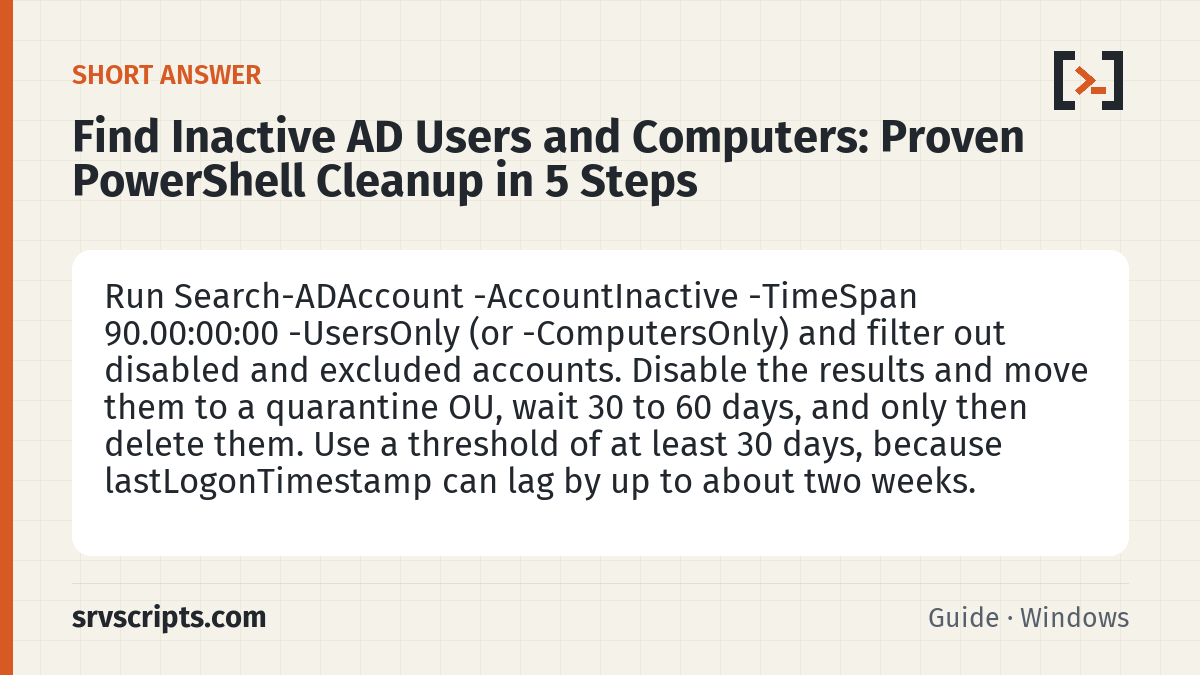
Short answer: Run Search-ADAccount -AccountInactive -TimeSpan 90.00:00:00 -UsersOnly (or -ComputersOnly) and filter out disabled and excluded accounts. Disable the results and move them to a quarantine OU, wait 30 to 60 days, and only then delete them. Use a threshold of at least 30 days, because lastLogonTimestamp can lag by up to about two weeks.
Table of Contents
Which method to use
| Method | Attribute used | Pros | Cons |
|---|---|---|---|
Search-ADAccount -AccountInactive | LastLogonDate (from lastLogonTimestamp) | One command; users and computers | Few filter options |
Get-ADUser / Get-ADComputer with a date filter | LastLogonDate, whenCreated, PasswordLastSet | Full control; exclusions in the query | More code |
lastLogon on every DC | lastLogon (not replicated) | Exact date | Slow on large domains; one query per DC |
| Microsoft Entra sign-in activity | signInActivity in Microsoft Graph | Sees cloud-only sign-ins | Separate licensing and Graph permissions |
For a monthly cleanup, LastLogonDate is accurate enough. Use lastLogon across all DCs only when you must prove the exact last logon of a specific account.
How lastLogonTimestamp works
Every DC records a user’s logon in the non-replicated lastLogon attribute. To keep replication traffic low, the DC only updates the replicated lastLogonTimestamp when the stored value is older than msDS-LogonTimeSyncInterval (14 days by default) minus a random offset. In practice the value you read can be roughly 9 to 14 days older than the real last logon.
- A threshold of 14 days or less produces false positives. Use 60 or 90 days for users and 90 days for computers.
- Do not lower
msDS-LogonTimeSyncIntervaljust for reporting; it increases replication on every DC. - Hybrid users who work only in Microsoft 365 with password hash synchronisation authenticate in the cloud, not against a DC, so their on-premises logon date may stay old while they are active. Check their Entra sign-in activity before you disable them.
Agree the thresholds first
Write the rules down and get them approved by HR and security before the first run. A starting point that works for most organisations:
| Object type | Inactive after | Action | Delete after |
|---|---|---|---|
| Employee user accounts | 90 days | Disable, move to quarantine, notify manager | 60 days in quarantine |
| Contractor and guest-style accounts | 30–60 days, or the account expiry date | Disable, move to quarantine | 30 days |
| Workstations and laptops | 90 days | Disable, move to quarantine | 60 days (keep BitLocker keys until then) |
| Servers | Report only | Owner review | Manual decision |
| Service accounts | Excluded | Annual review with the application owner | Manual decision |
Leavers should be handled by your offboarding process on their last day; the inactivity cleanup is a safety net for accounts that process missed.
Prerequisites
- The ActiveDirectory module (RSAT) and read access to the domain for reporting.
- For the cleanup steps, rights to disable, move and delete users and computers in the scoped OUs, and create rights in the quarantine OU.
- The Active Directory Recycle Bin enabled, so a deleted account can be restored with its groups.
- An agreed policy: inactivity threshold, exclusions, quarantine period and who approves deletions.
Step 1: Find inactive AD users
The quickest way to find inactive AD users is Search-ADAccount. It returns disabled accounts too, so filter them out:
Search-ADAccount -AccountInactive -TimeSpan 90.00:00:00 -UsersOnly -SearchBase "OU=Staff,DC=contoso,DC=com" |
    Where-Object Enabled |
    Select-Object Name, SamAccountName, LastLogonDate, DistinguishedName |
    Sort-Object LastLogonDate
The Get-ADUser version gives more control. It also catches accounts that were created more than 90 days ago and have never signed in, which have no LastLogonDate at all:
$cutoff = (Get-Date).AddDays(-90)
$users = Get-ADUser -Filter 'Enabled -eq $true -and whenCreated -lt $cutoff -and (LastLogonDate -lt $cutoff -or LastLogonDate -notlike "*")' -SearchBase "OU=Staff,DC=contoso,DC=com" -Properties LastLogonDate, whenCreated, PasswordLastSet, Description, servicePrincipalName, MemberOf
$users | Select-Object Name, SamAccountName, LastLogonDate, whenCreated, PasswordLastSet |
    Sort-Object LastLogonDate | Format-Table -AutoSize
Check PasswordLastSet as well: an account with an old logon date but a recent password change is often used by an application that authenticates in a way you do not expect.
Exact last logon for doubtful accounts
Before you disable an important account that the report flags, read the non-replicated lastLogon value from every DC and keep the newest one:
function Get-ExactLastLogon([string]$Sam) {
    $newest = 0
    foreach ($dc in (Get-ADDomainController -Filter *).HostName) {
        $v = (Get-ADUser -Identity $Sam -Properties lastLogon -Server $dc).lastLogon
        if ($v -gt $newest) { $newest = $v }
    }
    if ($newest) { [datetime]::FromFileTime($newest) } else { 'Never' }
}
Get-ExactLastLogon -Sam jdoe
Run it only for a handful of accounts: it contacts every DC once per user.
Check cloud sign-ins for hybrid users
If you find inactive AD users who hold Microsoft 365 licences, compare with their Entra sign-in activity. The signInActivity property needs Microsoft Entra ID P1 or P2 and the AuditLog.Read.All permission:
Connect-MgGraph -Scopes 'User.Read.All', 'AuditLog.Read.All' -NoWelcome
foreach ($u in $users) {
    $m = Get-MgUser -UserId $u.UserPrincipalName -Property UserPrincipalName, SignInActivity -ErrorAction SilentlyContinue
    [pscustomobject]@{
        User          = $u.SamAccountName
        ADLastLogon   = $u.LastLogonDate
        CloudLastSign = $m.SignInActivity.LastSuccessfulSignInDateTime
    }
}
An account with an old AD logon but a recent cloud sign-in is active; leave it alone and exclude it from the cleanup. LastSuccessfulSignInDateTime counts interactive and non-interactive sign-ins, so it is the right field for this check.
Step 2: Find stale computers
Domain-joined Windows machines change their computer account password every 30 days by default. A computer with both an old LastLogonDate and an old PasswordLastSet has almost certainly not contacted the domain.
$cutoff = (Get-Date).AddDays(-90)
Get-ADComputer -Filter 'Enabled -eq $true -and LastLogonDate -lt $cutoff -and PasswordLastSet -lt $cutoff' -Properties LastLogonDate, PasswordLastSet, OperatingSystem, whenCreated, Description |
    Where-Object { $_.OperatingSystem -notlike '*Server*' } |
    Select-Object Name, OperatingSystem, LastLogonDate, PasswordLastSet, DistinguishedName |
    Sort-Object LastLogonDate
# Same idea with Search-ADAccount
Search-ADAccount -AccountInactive -TimeSpan 90.00:00:00 -ComputersOnly | Where-Object Enabled
Treat servers separately: a file server that is only accessed, never restarted, still updates its password, but cluster name objects, NAS appliances, storage accounts joined to AD and non-Windows systems may not behave like Windows clients. Confirm with the owner before disabling any server object.
Step 3: Exclude service and special accounts
Most cleanup incidents come from disabling an account that an application uses once a quarter. Build the exclusions into the script, not into someone’s memory:
- By OU: keep service accounts in
OU=Service Accountsand never include it in-SearchBase. - By group: create SEC-Cleanup-Exempt and skip its members.
- By attribute: skip accounts with a
servicePrincipalName, or with a marker such as “SVC” in the description. - Built-in accounts: skip the built-in Administrator (RID 500), Guest and
krbtgt. - Managed service accounts: gMSAs and sMSAs have their own object classes; keep them out of user queries.
$exemptDn = (Get-ADGroup -Identity 'SEC-Cleanup-Exempt').DistinguishedName
$candidates = $users | Where-Object {
    $_.MemberOf -notcontains $exemptDn -and
    -not $_.servicePrincipalName -and
    $_.Description -notmatch 'SVC' -and
    $_.SID.Value -notmatch '-(500|501|502)$' -and
    $_.ObjectClass -eq 'user'
}
$candidates.Count
RIDs 500, 501 and 502 are the built-in Administrator, Guest and krbtgt. The MemberOf check covers direct membership only; keep the exempt group flat.
Run this block each time you find inactive AD users so the exclusions are applied the same way every month.
Step 4: Disable and quarantine
Deleting straight away is the most common mistake. The safer workflow is: report, disable, move to a quarantine OU, wait, then delete. Create the OU once:
New-ADOrganizationalUnit -Name 'Quarantine' -Path 'DC=contoso,DC=com' -ProtectedFromAccidentalDeletion $true
New-ADOrganizationalUnit -Name 'Users' -Path 'OU=Quarantine,DC=contoso,DC=com'
New-ADOrganizationalUnit -Name 'Computers' -Path 'OU=Quarantine,DC=contoso,DC=com'
Then disable each candidate, record the date and the original OU in the info (Notes) attribute, and move it. The script supports -WhatIf:
[CmdletBinding(SupportsShouldProcess)]
param([Parameter(Mandatory)][object[]]$Objects, [string]$TargetOU = 'OU=Users,OU=Quarantine,DC=contoso,DC=com')
$today = Get-Date -Format 'yyyy-MM-dd'
foreach ($o in $Objects) {
    $parent = $o.DistinguishedName -replace '^CN=.+?(?<!\\),', ''
    if ($PSCmdlet.ShouldProcess($o.Name, "Disable and move to $TargetOU")) {
        Disable-ADAccount -Identity $o.DistinguishedName
        Set-ADObject -Identity $o.DistinguishedName -Replace @{ info = "QUARANTINED $today FROM $parent" }
        Move-ADObject -Identity $o.DistinguishedName -TargetPath $TargetOU
        [pscustomobject]@{ Name = $o.Name; Date = $today; OriginalOU = $parent }
    }
}
Save it as Move-ToQuarantine.ps1 and run .\Move-ToQuarantine.ps1 -Objects $candidates -WhatIf first. Disabling is immediate and reversible; the user or device owner calls the service desk, you re-enable and move the account back, and nothing is lost. Tell managers about the process beforehand so a disabled account on a long leave is not a surprise.
If the quarantine OU sits outside the scope of your normal GPOs and Entra Connect synchronisation, moving an account there also removes it from Microsoft 365 on the next sync. That is often desirable, but check the effect on mailboxes and licences first.
Step 5: Delete after the retention period
After 30 to 60 days in quarantine, delete accounts whose quarantine date is older than the retention period:
$retention = (Get-Date).AddDays(-60)
Get-ADObject -SearchBase 'OU=Quarantine,DC=contoso,DC=com' -LDAPFilter '(|(objectClass=user)(objectClass=computer))' -Properties info |
    Where-Object { $_.info -match '^QUARANTINED (\d{4}-\d{2}-\d{2})' -and [datetime]$Matches[1] -lt $retention } |
    ForEach-Object {
        Set-ADObject -Identity $_.DistinguishedName -ProtectedFromAccidentalDeletion $false
        Remove-ADObject -Identity $_.DistinguishedName -Recursive -Confirm:$false -WhatIf
    }
-Recursive matters for computers: objects such as BitLocker recovery information are stored as child objects of the computer, and a plain Remove-ADComputer fails with “The directory service can perform the requested operation only on a leaf object”. Remove -WhatIf after checking the list.
Reports
A report is what managers and auditors see, so produce one every time you find inactive AD users or computers, before any change is made:
$date = Get-Date -Format 'yyyy-MM-dd'
$candidates | Select-Object Name, SamAccountName, LastLogonDate, PasswordLastSet, whenCreated, DistinguishedName |
    Export-Csv "C:\Reports\inactive-users-$date.csv" -NoTypeInformation -Encoding UTF8
$candidates | Select-Object Name, SamAccountName, LastLogonDate |
    ConvertTo-Html -Title "Inactive users $date" -PreContent "<h1>Inactive users ($($candidates.Count))</h1>" |
    Out-File "C:\Reports\inactive-users-$date.html" -Encoding utf8
Keep the CSV for at least as long as the Recycle Bin retention period; it is your record of what was disabled and why.
Schedule the cleanup
Scheduling is what turns a one-off project into hygiene: when you find inactive AD users every week, the list stays short and each account is easy to check. Run the report weekly and the quarantine step monthly as a scheduled task. A group Managed Service Account is the best identity: it needs no password management, and you can delegate exactly the rights it needs on the scoped OUs.
$action    = New-ScheduledTaskAction -Execute 'powershell.exe' -Argument '-NoProfile -ExecutionPolicy Bypass -File C:\Scripts\Invoke-ADCleanup.ps1'
$trigger   = New-ScheduledTaskTrigger -Weekly -DaysOfWeek Monday -At 6am
$principal = New-ScheduledTaskPrincipal -UserId 'CONTOSO\gmsa-adclean$' -LogonType Password
Register-ScheduledTask -TaskName 'AD inactive account cleanup' -Action $action -Trigger $trigger -Principal $principal
The gMSA needs Log on as a batch job on the server that runs the task, and the server must be allowed to retrieve its password (PrincipalsAllowedToRetrieveManagedPassword). Keep the deletion step manual, or at least require a fresh report review, until the process has run cleanly for a few months.
Verify it works
- Compare counts: the number in the report should match the number of objects in the quarantine OU after the run.
- Check a moved account:
Get-ADUser jdoe -Properties info, Enabled | Select-Object Enabled, info, DistinguishedName. - Confirm replication with
repadmin /showobjmetaon another DC if a change looks missing. - For scheduled runs, check the task history and the transcript or CSV the script writes.
Troubleshooting
| Symptom | Cause | Fix |
|---|---|---|
| Active users appear in the report | Threshold too short, cloud-only activity, or lastLogonTimestamp lag | Use 60–90 days; check Entra sign-ins; query lastLogon on all DCs for doubtful cases |
| An application broke after the cleanup | Service account not excluded | Re-enable it, move it to the service account OU and add it to the exempt group |
| “Access is denied” on move or delete | Object protected from accidental deletion, or missing rights | Clear the protection flag; delegate delete rights on the source OU and create rights on the target |
| Computer delete fails with “leaf object” error | Child objects under the computer | Use Remove-ADObject -Recursive |
| Brand-new accounts reported | No whenCreated filter | Add whenCreated -lt $cutoff |
Roll back or undo
For a quarantined account, read the original OU from info, enable the account and move it back:
$u = Get-ADUser -Identity jdoe -Properties info
$original = $u.info -replace '^QUARANTINED \S+ FROM ', ''
Enable-ADAccount -Identity $u
Move-ADObject -Identity $u.DistinguishedName -TargetPath $original
Set-ADUser -Identity $u -Clear info
For a deleted account, restore it from the Recycle Bin with Get-ADObject -Filter 'sAMAccountName -eq "jdoe"' -IncludeDeletedObjects | Restore-ADObject. Run the same process each month to find inactive AD users early, and the directory stays small, auditable and easy to reason about.
Find inactive AD users at a glance
Official documentation: Search-ADAccount, Last-Logon-Timestamp attribute.
Related guides: Get-ADUser PowerShell examples · Enable and use the Active Directory Recycle Bin to restore deleted objects · Group Managed Service Accounts (gMSA).
Frequently asked questions
How accurate is LastLogonDate for finding inactive users?
LastLogonDate comes from lastLogonTimestamp, which only updates when the stored value is older than about 14 days minus a random offset. It is accurate to within roughly two weeks, which is fine for a 60 or 90 day cleanup.
Should I delete inactive AD accounts straight away?
No. Disable them, move them to a quarantine OU and record the date and original location, then delete after 30 to 60 days if nobody claims them.
How do I stop service accounts from being disabled?
Keep them in a separate OU outside the search base, and also exclude members of an exempt group and accounts with a service principal name.
Why can Remove-ADComputer fail on old computers?
Some computers have child objects, such as BitLocker recovery information. Use Remove-ADObject with -Recursive to delete the computer and its children.