Three days before: prepare both sides
Lower DNS TTLs. Set every A/MX record you will change to 300 seconds now, so that on migration day the world picks up the new IP within minutes instead of a day. If DNS is on the old cPanel server itself, do it in WHM → DNS Functions → Edit DNS Zone; if it is on Cloudflare, it is already fast when proxied.
Table of Contents
Match versions on the new server. Migrations fail on the small things: a site on PHP 7.4 landing on a server without 7.4, MariaDB 10.3 dumps into 10.11 (fine) but 10.11 into 10.3 (not fine), an .htaccess that needs mod_ruid2. Compare:
/usr/local/cpanel/cpanel -V; cat /etc/redhat-release; mysql -V
whmapi1 php_get_installed_versions
Install the same PHP versions and extensions on the destination through EasyApache 4 (ea_php74, ea-php74-php-imagick, and so on). Install the same panel add-ons: LiteSpeed, Imunify, JetBackup, CloudLinux with the same LVE limits.
Open the path. On the new server, whitelist the old server’s IP in CSF (csf -a OLD_IP) and confirm root SSH from new to old works, because the Transfer Tool pulls from the old box.
Migration day: first sync
Use WHM → Transfer Tool (Transfer or Restore a cPanel Account) on the new server. Enter the old server’s IP and root password or key, select all accounts, and tick Express Transfer only if you are happy for the old accounts to be suspended immediately; for a no-downtime move leave it off. Also tick Overwrite on nothing yet. Start the transfer.
It runs pkgacct per account on the old server, streams the archive, and restores it. On a 200 GB server expect two to six hours. While it runs, nothing changes for visitors; sites still serve from the old box.
From the command line the same thing per account is:
# old server
/scripts/pkgacct username /home/transfer
# new server
/scripts/restorepkg /home/transfer/cpmove-username.tar.gz
Test on the new server before DNS changes
Add a line to your own hosts file for the two or three biggest sites pointing at the new IP, and click through them: front page, admin login, a form submission, a search. Check SSL: cPanel’s AutoSSL will not issue until DNS points at the new server, so temporarily copy certificates with /scripts/restorepkg (they come across in the archive) — sites should already have them. Send a test mail to and from a migrated mailbox using the new server’s hostname as the mail server.
Second sync and cut-over
Files and databases changed on the old server while the first transfer ran. Run the Transfer Tool again with Overwrite enabled for the accounts, or rsync the home directories and dump the databases again for a faster delta:
rsync -aHAX --delete -e ssh root@OLD:/home/user/ /home/user/
mysqldump --single-transaction dbname | mysql dbname   # via ssh from old
Now change DNS: every A record to the new IP, MX to the new hostname if the hostname changed. With 300-second TTLs the switch is effectively complete within 15 minutes. Watch traffic arrive on the new server with tail -f /etc/apache2/logs/domlogs/domain.com.
Keep mail from being lost
The window where some senders still deliver to the old server is the only real risk. Handle it two ways:
- On the old server, in WHM → Edit MX Entry for each domain, set mail routing to Remote Mail Exchanger so anything delivered there is forwarded to the new server rather than stored.
- For 48 hours, sync mailboxes old → new once more with
rsync -a root@OLD:/home/user/mail/ /home/user/mail/(without--delete), so any mail that landed on the old box appears on the new one.
Also make sure DKIM records now match the new server’s keys (WHM → Email Deliverability will tell you), or outbound mail from the new server fails DMARC.
After: retire the old server properly
Keep the old server for one week, suspended in WHM (whmapi1 suspendacct) so nothing runs but everything is recoverable. Change the nameservers’ glue records if the old box was a nameserver. Run AutoSSL on the new server, confirm backups (JetBackup or cPanel backups) are configured and have completed once, and only then cancel the old machine. A final whmapi1 listaccts on both sides, compared, is your proof that nothing was left behind.
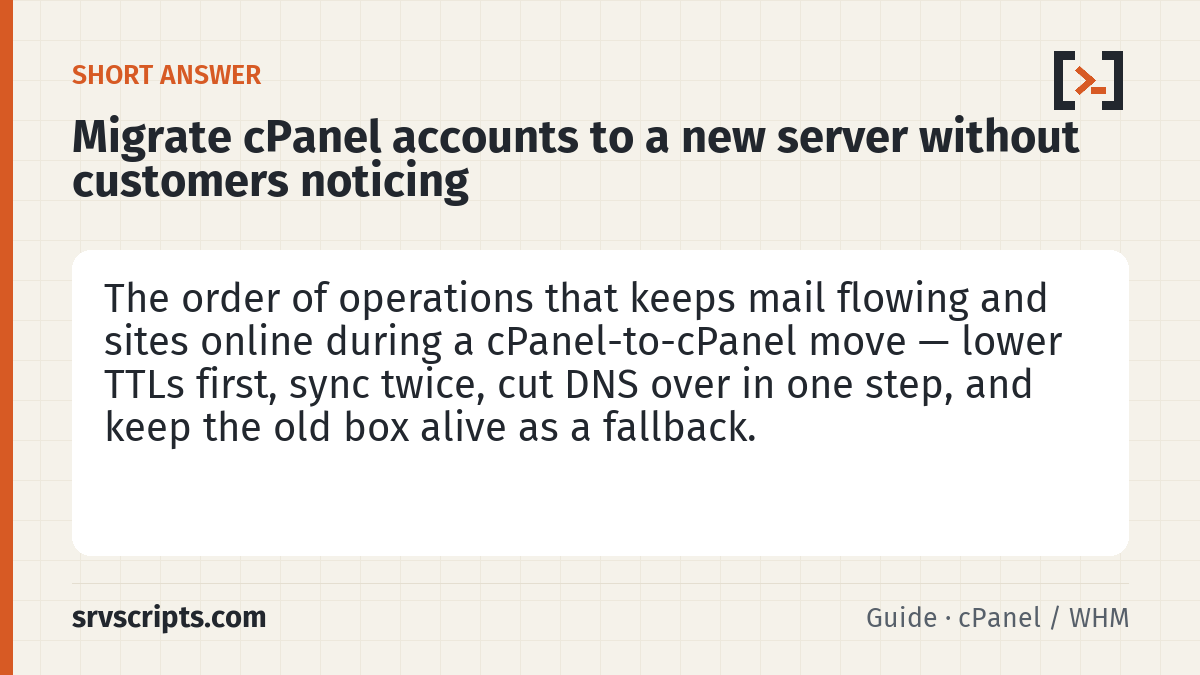
Migrate cPanel accounts at a glance
Official documentation: cPanel & WHM documentation, Linux man pages.
Related guides: Transferring accounts between servers with the WHM Transfer Tool · How to upgrade MySQL 8.0 to MariaDB 11.8 in WHM without losing databases · Google Workspace: migrate email from cPanel/IMAP with the Data Migration Service.
Maintenance record
This guide changes servers, data or security settings, so we re-check it against current versions on a fixed schedule. Take a backup or snapshot before you start.
- Maintained by
- srvScripts editorial team
- Last full review
- Next review
- Sources
- docs.cpanel.net