DigitalOcean Droplets are simple to start, and most problems after that come from a short list: SMTP is blocked, SSH keys or firewalls lock you out, an update renames the network interface, or the disk fills up. Each one has a known fix, and most need the Recovery Console rather than a support ticket. This guide lists the problems we see most on Droplets, with how to confirm each one and how to fix it, and links to the free srvScripts tool or detailed guide that does the work.
Applies to Partly tested on a DigitalOcean Droplet (Basic 512 MB, Ubuntu 24.04.5) on 15 Oct 2026; recovery and fault scenarios from DO docs
Short answer: If mail will not send, DigitalOcean blocks SMTP ports 25, 465 and 587, so use a relay on port 2525. If SSH says “Permission denied (publickey)”, reset the root password and log in through the Recovery Console to add a key. If SSH or the website times out, check both the Cloud Firewall and the host firewall (ufw or firewalld). If the Droplet lost all network after an update, rename the interfaces back to eth0 and eth1 in netplan. If the disk is full and you cannot log in, boot the recovery ISO and delete files before resizing. A compromised Droplet has its network disabled and must be rebuilt.
Table of Contents
Find your problem
| What you notice | Most likely cause | Jump to |
|---|---|---|
| Mail stuck in the queue, “Connection timed out” | DigitalOcean SMTP block | 1 |
| SSH: Permission denied (publickey) | Key missing, wrong permissions or password login disabled | 2 |
| SSH or website: timed out or refused | Cloud Firewall, host firewall, SSH not running, or your IP banned | 3 |
| No network at all after updates | Network interface renamed | 4 |
| Cannot log in, services failing, “No space left on device” | Disk 100% full | 5 |
| Disk still full after attaching a Volume | Volumes are separate disks | 6 |
| “Read-only file system” errors | File system errors | 7 |
| Slow, processes killed | CPU or memory exhausted, no swap | 8 |
| Email from DigitalOcean: outgoing flood, network disabled | Droplet compromised | 9 |
| Let’s Encrypt renewal fails | Port 80 blocked or DNS changed | 10 |
| Mail flagged, no reverse DNS | Droplet name is not a hostname | 11 |
| Want cPanel or DirectAdmin | Supported, with the SMTP caveat | 12 |
1. Mail will not send
DigitalOcean blocks SMTP ports 25, 465 and 587 on all Droplets by default, including through a Reserved IP (Why is SMTP blocked?). Messages do not bounce; they time out and wait in the queue. Confirm with timeout 5 bash -c '</dev/tcp/gmail-smtp-in.l.google.com/25' || echo blocked. Fix it by sending through an authenticated relay on port 2525 or an HTTP API. Our DigitalOcean SMTP blocked guide has the Exim, Postfix and WordPress settings.
2. SSH: Permission denied (publickey)
The server rejected your login. Run ssh -v root@IP and look at which keys were offered. The usual causes are: your key is not on the Droplet (or not loaded on your computer), password login is disabled, or authorized_keys has the wrong permissions. To get back in when no key works:
- In the control panel, open the Droplet, go to Settings > Reset root password. A temporary password is emailed to you.
- Open Access > Launch Console (the Recovery Console), log in as root with that password and set a new one.
- Add your public key to
~/.ssh/authorized_keysand fix permissions:chmod 700 ~/.ssh; chmod 600 ~/.ssh/authorized_keys. The file must be owned by the user who logs in. - If you must log in with a password temporarily, set
PasswordAuthentication yesin/etc/ssh/sshd_configand, on Ubuntu 22.04+ and Debian 12+, in/etc/ssh/sshd_config.d/50-cloud-init.conf, which overrides it. Restart SSH, add the key, then set it back tono.
Compare the fingerprint of the key you think you are using with the one on the server using the SSH key fingerprint tool (it runs in your browser). Once you are back in, harden SSH properly: Harden SSH.
3. SSH or the website times out or is refused
“Connection timed out” means packets are dropped on the way, usually by a firewall. “Connection refused” means the Droplet answered but nothing is listening on that port. A Droplet can have two firewalls: a DigitalOcean Cloud Firewall (Networking > Firewalls), which blocks everything not explicitly allowed, and a host firewall inside the Droplet. Check both. From the Recovery Console:
ss -plnt                     # is sshd / the web server listening, and on which port?
ufw status verbose           # Ubuntu and Debian
firewall-cmd --list-all      # AlmaLinux and Rocky
grep -i '^Port' /etc/ssh/sshd_config /etc/ssh/sshd_config.d/*.conf
csf -g YOUR.IP.ADDRESS       # if CSF is installed: is your own IP blocked?
Check from outside with the open port checker. If you changed the SSH port, the new port must be allowed in both firewalls before you restart SSH (see Change the SSH port on Linux). If CSF or fail2ban banned your IP after failed logins, CSF commands shows how to remove and allow it.
4. No network at all after a software update
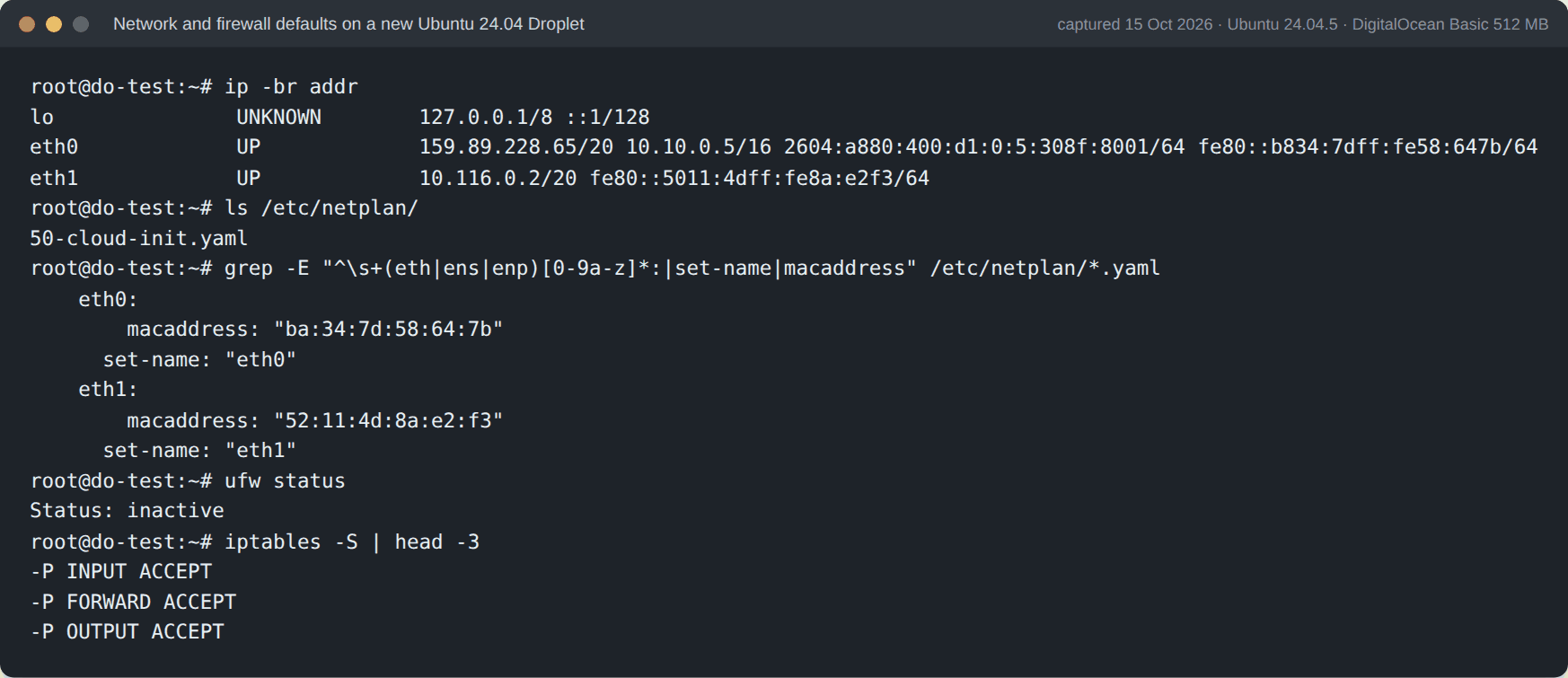
DigitalOcean says updates can rename a Droplet’s network interfaces, and its network expects eth0 (public) and eth1 (private) (DigitalOcean support article). From the Recovery Console:
ip addr                                  # see the current interface names
nano /etc/netplan/50-cloud-init.yaml     # under ethernets: rename keys to eth0 / eth1, set-name to match
netplan try --debug                      # applies for 120 seconds; press ENTER in the console to keep it
While netplan try is waiting, ping the Droplet’s public IP from your computer. If it answers, press Enter to keep the change. Take a snapshot before major upgrades so you can roll back.
5. Disk 100% full and you cannot log in
With no free space, SSH logins, databases and mail fail in strange ways. DigitalOcean warns not to resize the Droplet first: with zero free space the file system cannot grow into the new disk (recover a Droplet at 100% disk). Boot the recovery ISO, open the Recovery Console, choose 1 to mount and 5 to chroot, then find and remove what filled it:
df -h
du -xh --max-depth=1 / | sort -h | tail
journalctl --vacuum-size=200M     # trim the systemd journal
find /var/log -name '*.gz' -mtime +14 -delete
Then boot from the hard drive again. Check inodes too, because df -i can be at 100% while space is free (see inode usage report). Our disk full runbook lists the usual culprits: logs, backups, mail queues, Docker images and old kernels.
6. Disk still full after attaching a Volume
A Block Storage Volume is a separate disk, mounted under a path such as /mnt/volume_nyc1_01. It does not add space to /. Move the large data (backups, media, a database data directory) onto the volume and point the application at the new path, or resize the Droplet’s own disk. lsblk and df -h show which file system is which.
7. "Read-only file system"
Linux remounts the root file system read-only when it detects errors, to stop further damage. Look for the trigger in /var/log/syslog or /var/log/kern.log (Ubuntu, Debian) or /var/log/messages (AlmaLinux, Rocky), or in dmesg. Then boot the recovery ISO and run fsck on the unmounted disk. Never run it on a mounted file system. Take a snapshot first if the Droplet still boots. Linux server log file locations lists where each distribution logs.
8. High CPU or memory, processes being killed
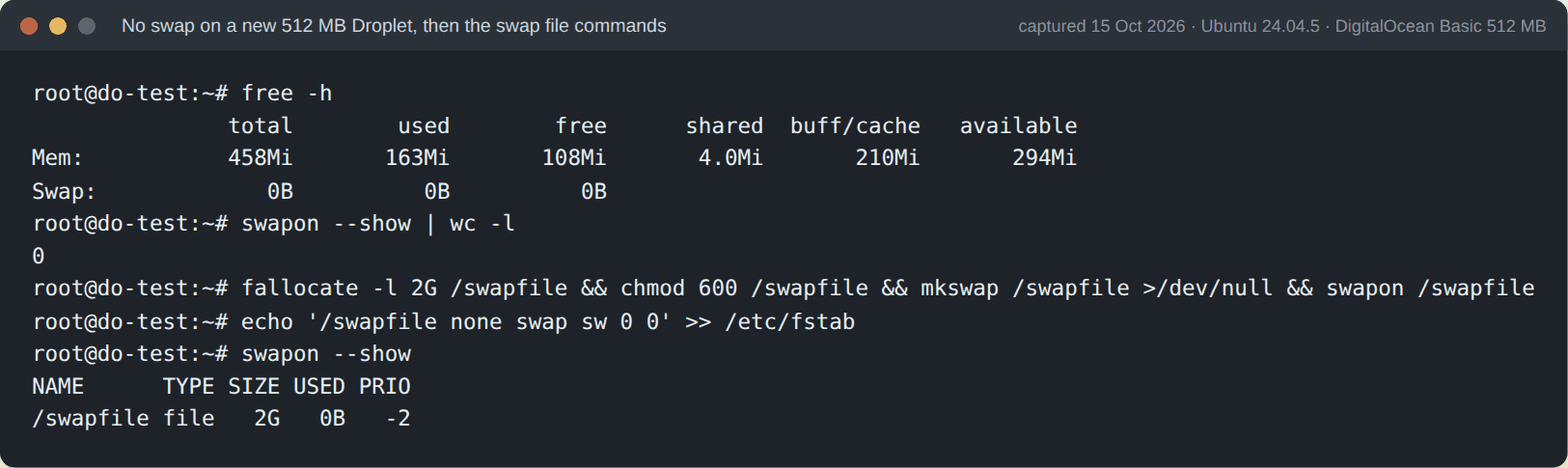
DigitalOcean’s position is that high usage comes from processes inside the Droplet: find them, stop them, or resize if the normal workload needs more. Droplets are created without swap (our 512 MB test Droplet had none), so small ones often run out of memory and the kernel’s OOM killer stops MySQL or PHP-FPM first. Confirm and add a small swap file as a cushion, not as a substitute for RAM:
dmesg -T | grep -i 'killed process'     # OOM kills
free -h; swapon --show
fallocate -l 2G /swapfile && chmod 600 /swapfile && mkswap /swapfile && swapon /swapfile
echo '/swapfile none swap sw 0 0' >> /etc/fstab
The process hog report script shows which processes use the most CPU and memory over time, and atop and sar history shows what happened before the slowdown.
9. "Outgoing flood" email and the network is disabled
If a Droplet sends unusually heavy outbound traffic, DigitalOcean disables its normal network access and leaves only the Recovery Console. In almost every case the Droplet has been compromised and is sending spam or attack traffic (DigitalOcean support article). Their advice, which we agree with, is to copy your data off through the recovery ISO, build a new hardened Droplet, and investigate the old one rather than trying to clean it in place. Our server compromised runbook covers finding the entry point, the processes and files to check, and what to rotate.
10. Let's Encrypt renewal fails
HTTP-01 renewal needs port 80 open from the internet to the Droplet. A Cloud Firewall rule that allows only 443 breaks every renewal, often months after setup. Test with certbot renew --dry-run and read the error. Check that port 80 is allowed in both firewalls and that the domain’s A and AAAA records still point to this Droplet. An AAAA record pointing somewhere else is a common surprise. Check the live certificate with the SSL certificate checker, and see Let’s Encrypt 2026 changes for shorter lifetimes and the end of OCSP.
11. No reverse DNS (PTR) for the Droplet
DigitalOcean creates the PTR record from the Droplet’s name, which must be a valid fully qualified domain name such as server1.example.com. There is no separate PTR setting (DigitalOcean DNS records). With IPv6, only the first address gets a PTR. On our test Droplet the PTR appeared for both the IPv4 and the IPv6 address as soon as it was created with a full hostname as its name. Rename the Droplet to its hostname, make sure the hostname’s A record points back to the same IP, and verify with the reverse DNS lookup.
12. Installing cPanel or DirectAdmin on a Droplet
DigitalOcean says cPanel and WHM can be installed on AlmaLinux, Rocky and Ubuntu Droplets, and offers a Marketplace image. Plan for three things before you start: outbound mail must go through a relay on port 2525 (problem 1), name the Droplet with the server hostname for PTR (problem 11), and open the panel’s ports in the Cloud Firewall. Our install guides: cPanel on AlmaLinux 10 and DirectAdmin on AlmaLinux and Debian 13. To compare DigitalOcean with providers that allow port 25, see best VPS for a cPanel or DirectAdmin server.
How this guide was tested: on 15 October 2026 we created a DigitalOcean Droplet (Basic plan, 512 MB, Ubuntu 24.04.5) and confirmed: outbound SMTP on 25, 465 and 587 times out while relay port 2525 works (problem 1); ufw is inactive and no firewall rules are set on a new Droplet (problem 3); the netplan file is /etc/netplan/50-cloud-init.yaml with eth0 and eth1 pinned by MAC address and set-name (problem 4); the Droplet had no swap and the swap commands in problem 8 work; and naming the Droplet with a full hostname created PTR records for its IPv4 and IPv6 addresses (problem 11). The Recovery Console, recovery ISO, outgoing-flood lockout, read-only file system and resize steps need the control panel or a real fault, so they come from DigitalOcean’s support documentation (last verified between March and September 2026) and were not reproduced.
DigitalOcean Droplet problems at a glance
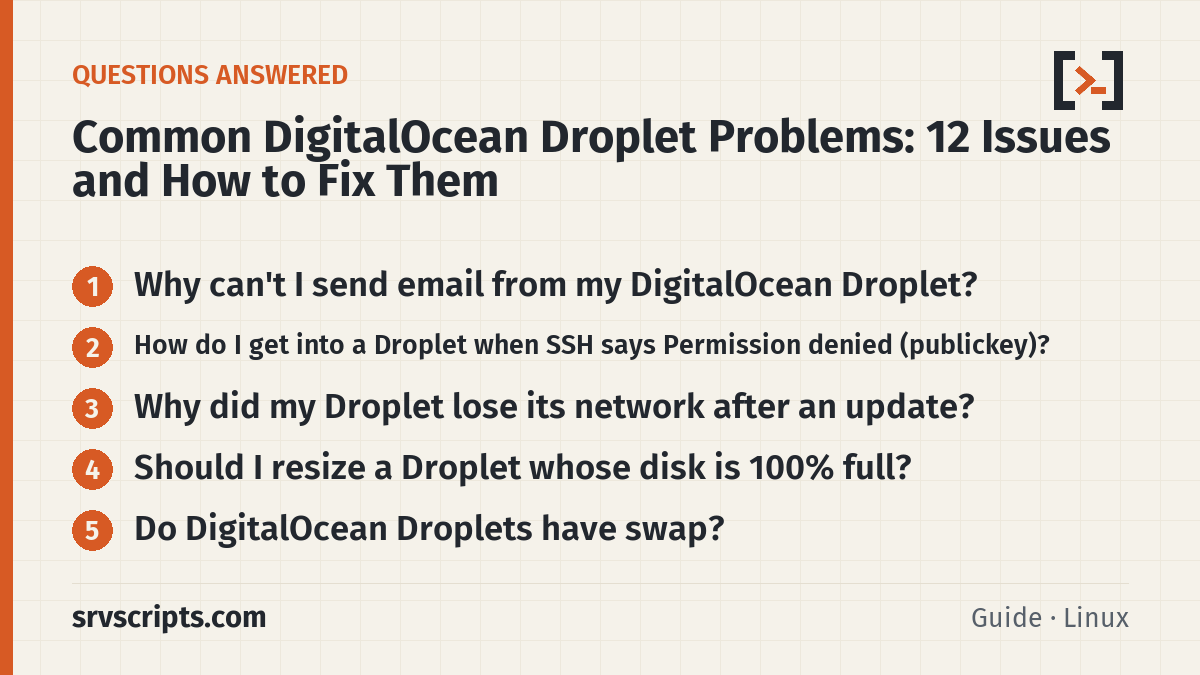
Frequently asked questions
Why can’t I send email from my DigitalOcean Droplet?
DigitalOcean blocks SMTP ports 25, 465 and 587 on all Droplets by default. Send through an authenticated relay on port 2525 or through an email provider’s HTTP API.
How do I get into a Droplet when SSH says Permission denied (publickey)?
Reset the root password from the Droplet’s Settings tab, log in through the Recovery Console with the emailed password, then add your public key to authorized_keys with permissions 700 on .ssh and 600 on the file.
Why did my Droplet lose its network after an update?
Updates can rename the network interfaces, and DigitalOcean’s network expects eth0 and eth1. Rename them in /etc/netplan/50-cloud-init.yaml from the Recovery Console and apply with netplan try.
Should I resize a Droplet whose disk is 100% full?
Not first. With no free space the file system cannot grow into the larger disk. Boot the recovery ISO, delete files to free space, boot normally, and resize afterwards if you still need more.
Do DigitalOcean Droplets have swap?
Not by default. Small Droplets can run out of memory and the OOM killer stops services. A small swap file helps absorb short spikes, but a workload that regularly needs more memory needs a larger Droplet.
Reading a lot of our guides? Go ad-free with srvScripts Pro for $6 a month. It also pays for new guides. Cancel any time.