Asterisk, FreePBX and Issabel save call recordings as WAV, WAV49 or GSM files. They are fine for the PBX, but large (PCM WAV is about 1 MB per minute) or unplayable outside it (GSM). This guide shows how to convert Asterisk recordings to MP3 with ffmpeg or sox and lame: one file by hand, the whole archive in one pass, and every new call automatically, without breaking playback in the FreePBX call log.
Applies to a real FreePBX 17 server (Debian 12, Asterisk 22
Short answer: Install ffmpeg, then convert a recording with ffmpeg -i call.wav -ac 1 -c:a libmp3lame -b:a 32k call.mp3. Raw .gsm files need -f gsm before -i. For the whole /var/spool/asterisk/monitor tree, run our free asterisk-recordings-to-mp3.sh from cron every 10 minutes: it skips calls still recording, verifies each MP3 and can update asteriskcdrdb.cdr so FreePBX still plays them.
Table of Contents
Why Asterisk records WAV and GSM, not MP3
MixMonitor, the application that records calls, writes the format given by the file extension, and Asterisk can only write formats it has a format module for: wav (16-bit PCM), WAV/wav49 (GSM inside WAV), gsm, ulaw, alaw, sln and a few others. Its MP3 module only reads MP3, for music on hold. So the usual design is to record in WAV and convert afterwards.
FreePBX sets the format under Settings → Advanced Settings → Call Recording Format. WAV is the default and the safest choice: it records cleanly and converts quickly.
Find your recordings
# FreePBX / Issabel / plain Asterisk default location
ls /var/spool/asterisk/monitor/
du -sh /var/spool/asterisk/monitor

# FreePBX sorts recordings by date
ls /var/spool/asterisk/monitor/2026/10/02/ | head

# count recordings by type
find /var/spool/asterisk/monitor -type f | sed 's/.*\.//' | sort | uniq -c
Vicidial keeps its recordings under /var/spool/asterisk/monitorDONE/. A custom dialplan can write anywhere, so check the MixMonitor line if the folder is empty.
Convert one recording by hand
With ffmpeg
# 16-bit PCM .wav (FreePBX default)
ffmpeg -i call.wav -ac 1 -c:a libmp3lame -b:a 32k call.mp3

# uppercase .WAV (WAV49, GSM inside WAV): ffmpeg reads the header itself
ffmpeg -i call.WAV -ac 1 -c:a libmp3lame -b:a 32k call.mp3

# raw formats have no header, so tell ffmpeg what they are
ffmpeg -f gsm -ar 8000 -ac 1 -i call.gsm -c:a libmp3lame -b:a 32k call.mp3
ffmpeg -f mulaw -ar 8000 -ac 1 -i call.ulaw -c:a libmp3lame -b:a 32k call.mp3
ffmpeg -f s16le -ar 16000 -ac 1 -i call.sln16 -c:a libmp3lame -b:a 32k call.mp3

# check the result
ffprobe -v error -show_entries format=duration -of csv=p=0 call.mp3
With sox and lame
sox call.wav -t wav - | lame --quiet -m m -b 32 - call.mp3
sox -t gsm -r 8000 -c 1 call.gsm -t wav - | lame --quiet -m m -b 32 - call.mp3
sox -t ul -r 8000 -c 1 call.ulaw -t wav - | lame --quiet -m m -b 32 - call.mp3
-m m and -ac 1 make the MP3 mono, which halves the size compared with a stereo encode and loses nothing, because the recording is a single mixed channel.
Convert the whole archive
For hundreds or thousands of files use the asterisk-recordings-to-mp3.sh script. Start with a dry run, then convert and keep the originals:
curl -fsSL https://srvscripts.com/get/asterisk-recordings-to-mp3/ -o /usr/local/bin/asterisk-recordings-to-mp3.sh
chmod 755 /usr/local/bin/asterisk-recordings-to-mp3.sh
asterisk-recordings-to-mp3.sh --dry-run | tail -3
asterisk-recordings-to-mp3.sh --days 30
It processes files one at a time with nice, so it is safe on a live PBX, and prints the space saved at the end. A large archive takes a while: on a small two-core server ffmpeg converts an hour of audio in about 10 seconds, so 1,000 hours of recordings take around three hours.
Convert new calls automatically
Option 1: cron (recommended)
# /etc/cron.d/recordings-mp3
*/10 * * * * root /usr/local/bin/asterisk-recordings-to-mp3.sh -q --older-than 5 --delete-original --update-cdr >>/var/log/recordings-mp3.log 2>&1
Cron needs no changes to the PBX configuration, survives FreePBX upgrades and catches up after a reboot. The five-minute window means a recording is converted soon after the call ends.
Option 2: MixMonitor post-recording command (plain Asterisk)
MixMonitor accepts a command to run when the recording finishes. Inside it, write variables as ^{NAME} instead of ${NAME} so they are expanded at the end of the call:
same => n,MixMonitor(${UNIQUEID}.wav,b,nice -n 19 lame --quiet -m m -b 32 /var/spool/asterisk/monitor/^{UNIQUEID}.wav /var/spool/asterisk/monitor/^{UNIQUEID}.mp3)FreePBX has the same hook as “Post Call Recording Script” in Advanced Settings. It converts instantly but runs once per call with no retry, which is why the cron script is easier to keep reliable.
Keep the FreePBX call log working
FreePBX plays recordings in CDR Reports and UCP by looking up the recordingfile column in asteriskcdrdb.cdr. If you delete a WAV without changing that column, the call still appears but the player has nothing to play. Either keep the originals, or update the column as you convert:
mysql -e "UPDATE asteriskcdrdb.cdr
  SET recordingfile = REPLACE(recordingfile, 'out-101-20261002-1.wav', 'out-101-20261002-1.mp3')
  WHERE recordingfile LIKE '%out-101-20261002-1.wav'"
The script does this for every file with --update-cdr, using the credentials FreePBX already keeps in /root/.my.cnf.
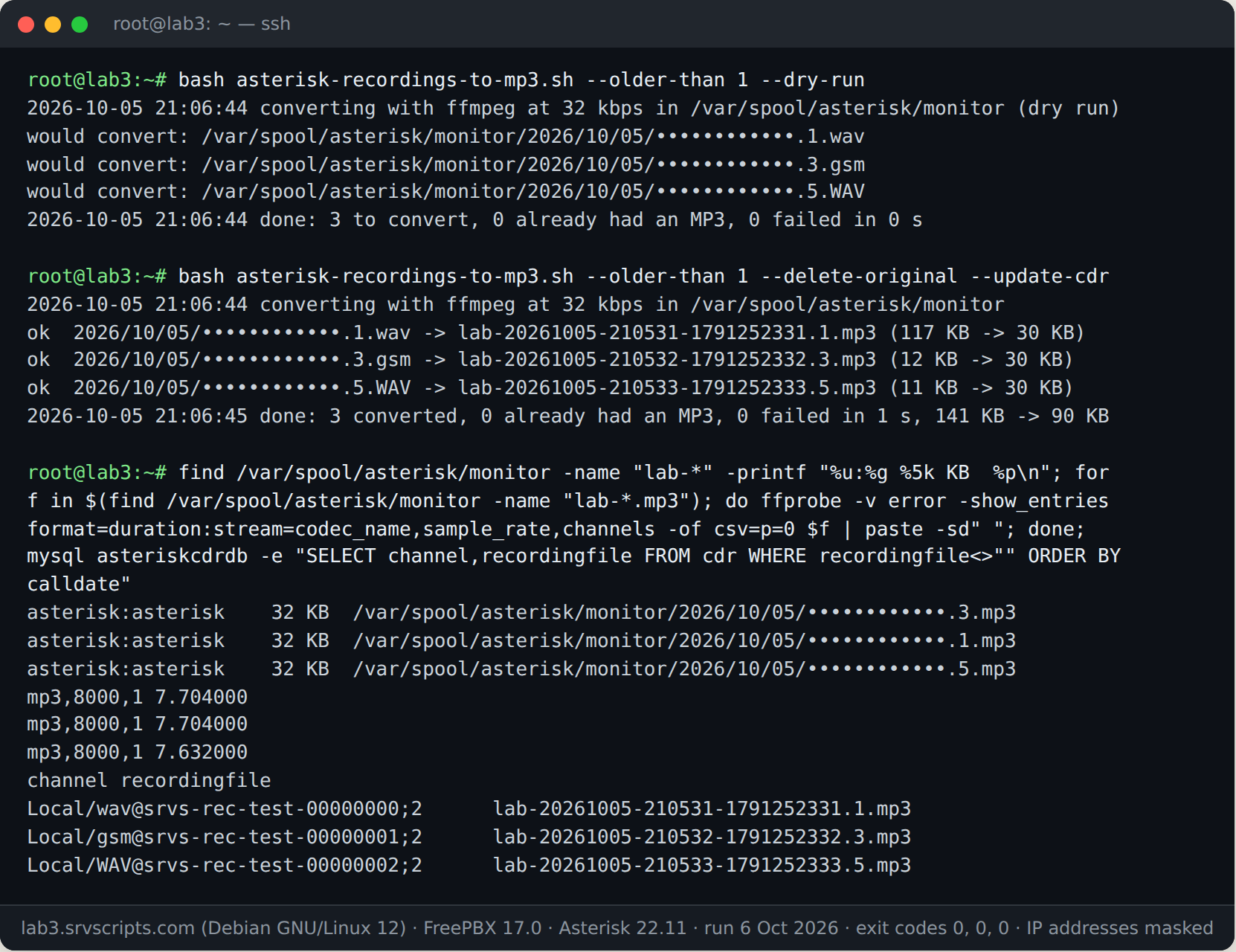
Tested on a real FreePBX 17 server (Debian 12, Asterisk 22.11) on 6 October 2026: we made three calls that Asterisk recorded with MixMonitor in wav, gsm and WAV (wav49) format, each with its call-log row. The script converted all three, kept the asterisk owner, deleted the originals only after checking each MP3, and pointed the call log at the new files. The 7.7-second WAV shrank from 117 KB to 30 KB; the GSM files grew from 12 KB to 30 KB, because GSM is already smaller than 32 kbps MP3.
How much space MP3 saves
| Format | Per minute | Per 1,000 hours |
|---|---|---|
| WAV 16-bit 8 kHz (FreePBX default) | about 960 KB | about 56 GB |
| G.711 µ-law / A-law | about 480 KB | about 28 GB |
| MP3 32 kbps mono | about 240 KB | about 14 GB |
| MP3 16 kbps mono | about 120 KB | about 7 GB |
| GSM / WAV49 | about 97 KB | about 6 GB |
GSM is the smallest of all, but it needs converting before anyone can play it. MP3 at 32 kbps is a quarter of the WAV size and plays everywhere, so it is the usual archive format. Pair it with a retention rule, for example deleting recordings older than your legal requirement with find /var/spool/asterisk/monitor -name '*.mp3' -mtime +365 -delete.
Troubleshooting
- “Invalid data found when processing input” on a
.gsmor.ulawfile: raw files have no header, so add-f gsmor-f mulaw -ar 8000 -ac 1before-i. - MP3 plays at double or half speed: the sample rate of a raw
.slnfile was guessed wrong..slnis 8 kHz,.sln16is 16 kHz. - sox: “no handler for detected file type”: install the sox format plugins (
libsox-fmt-allon Debian) or use ffmpeg. - lame: command not found on AlmaLinux or Rocky: enable EPEL or RPM Fusion, or install ffmpeg instead.
- FreePBX shows the call but will not play it: the call log still points at the deleted WAV. Run the
UPDATEabove or the script with--update-cdr. - Only one side of the call is audible: the recording was made with separate legs (MixMonitor
r()/t()options); convert both files, or mix them withsox -m in.wav out.wav mixed.wavfirst.
Converting recordings at a glance
Official documentation: Asterisk MixMonitor, FFmpeg libmp3lame options, SoX manual, LAME.
Related: Call recording converter (browser) · Recordings to MP3 script · Install Asterisk 22 on Debian · VoIP codec bandwidth.
Frequently asked questions
Can Asterisk record calls straight to MP3?
No. Asterisk can only write formats it has a format module for, and its MP3 module is read-only. Record in WAV and convert afterwards, either from cron or with a MixMonitor post-recording command.
Which bit rate is best for call recordings?
32 kbps mono. Phone audio is 8 kHz narrowband, so higher rates add size without adding clarity. 16 kbps is fine for long-term archives; use 48 kbps or more only for wideband calls.
Will converting to MP3 break the FreePBX call log?
Only if you delete the WAV files without updating the recordingfile column in asteriskcdrdb.cdr. Update the column, or let the script do it with –update-cdr.
How do I open a .gsm recording on Windows or a Mac?
Convert it first: with ffmpeg use -f gsm before -i, or drop it into our browser-based call recording converter, which turns .gsm and WAV49 files into MP3 without uploading them.
Maintenance record
This guide changes servers, data or security settings, so we re-check it against current versions on a fixed schedule. Take a backup or snapshot before you start.
- Maintained by
- srvScripts editorial team
- Supported versions
- Tested on a real FreePBX 17 server (Debian 12, Asterisk 22
- Last full review
- Next review